
Live Camera & Gesture Test
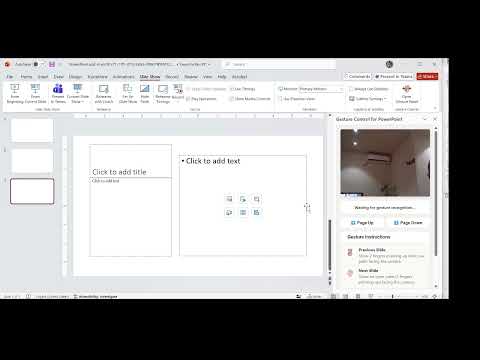
Test the gesture recognition right here in your browser! Turn on your camera and try showing the gestures below.
Gesture Instructions

Show 2 fingers pointing up with your palm facing the camera.

Show an open palm (5 fingers pointing up) facing the camera.
FAQ
How to Allow Camera Access in PowerPoint
The first time you open the Gesture Panel, PowerPoint shows a prompt asking whether this add-in may use your camera. Click Allow. The webcam preview then appears and gesture recognition starts right away.
How to Reset & Unblock Camera Permissions in PowerPoint
If you clicked Block by mistake (or closed the prompt), PowerPoint remembers that choice and will not ask again. To fix it, clear the saved permission so the system shows the prompt again as described in the first question, then choose Allow. Use one of the two options below.
Option 1: Run 3 commands
Open Command Prompt (press Win + R, type cmd, press Enter), then paste and run each command in order. Do not use PowerShell.
taskkill /F /IM POWERPNT.EXEtaskkill /F /IM msedgewebview2.exermdir /S /Q "%LOCALAPPDATA%\Microsoft\Office\16.0\Wef"Option 2: Download a script
Download the file and double-click it. It closes PowerPoint and clears the cache for you. If Windows shows a warning, choose Keep / Run anyway.
⬇️ Download unblock-camera.bat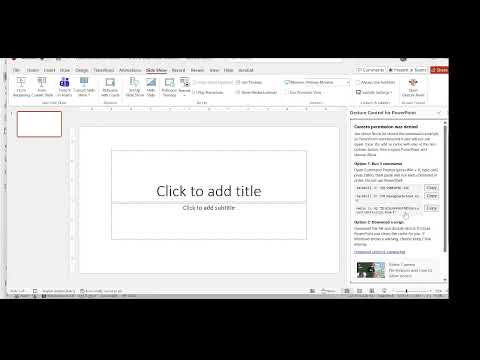
Both options close PowerPoint. Save your work first.